Retour à l'aperçu
Date
août 31, 2026
Tags
Control panel

Which ProDVX device should you choose as your control panel?

Choosing the right control panel is not just about choosing a screen. It is about matching a device to the software you are integrating, the installation you are planning, the end users it needs to serve, and the way you intend to roll it out across rooms, buildings or customers.

As soon as you start planning to add a control panel to a room, building, workstation or industrial process, the practical questions start quickly.

Will your application run on it?
Can users interact with it in the right way?
Can it be installed without unnecessary complexity?
And if you need multiple devices, can you deploy them consistently instead of configuring every panel one by one?

That is why the first question should not be: which device has the most features? The better question is: which ProDVX device fits your situation?
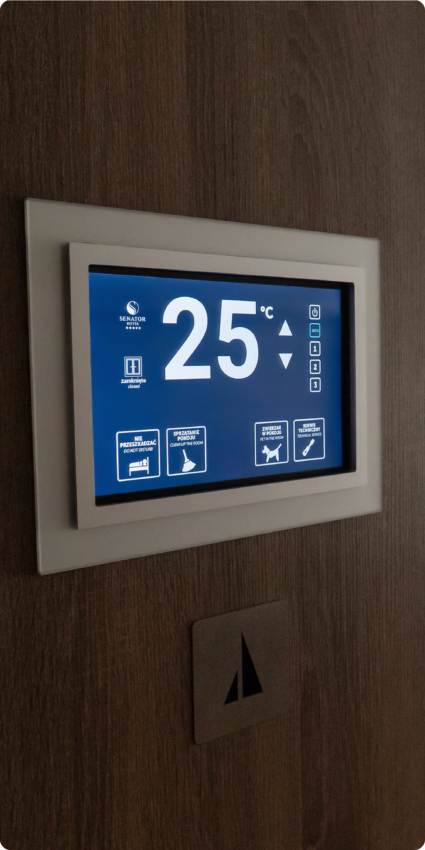
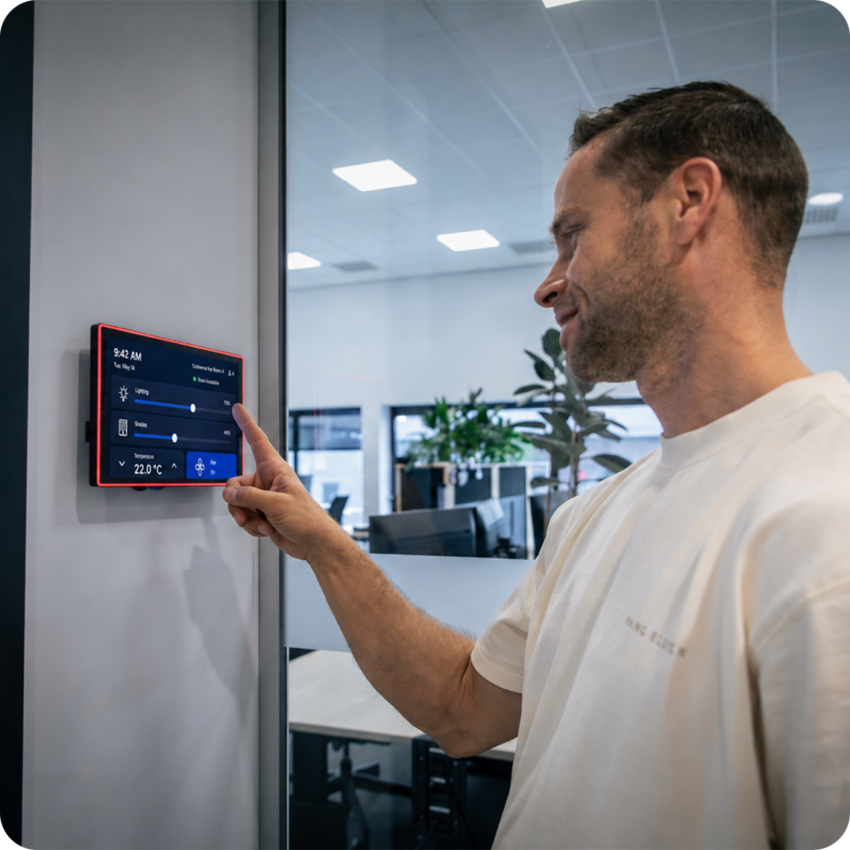
Which operating system does your application need, Android, Windows, Linux or ChromeOS Flex?

Start with the operating system. ProDVX panels are software-agnostic: they are not built around one fixed control platform, so they can run whichever software you are integrating for this project. But the operating system underneath the panel is a separate choice, and it is usually the one that narrows things down fastest.

If your control application is built for Android or runs in a browser, your device choice will be different from a project that depends on Windows, Linux or ChromeOS Flex.

For Android projects, there is another important distinction: does the application need an AOSP device or a GMS-enabled device? An AOSP device may be suitable when your application is installed and managed directly and does not depend on Google services. A GMS-enabled device becomes relevant when your application relies on Google services or when your deployment uses tools such as Managed Google Play as part of an Android Enterprise setup.

This matters because the wrong operating system creates extra work later. It can mean more development, more testing, more support questions or more limitations during deployment.

So before comparing devices, ask yourself:

  • Which operating system does the application need to run on?
  • If it is Android, do we need an AOSP or GMS-enabled device?
  • Does our deployment depend on Google services or Managed Google Play?
  • Is this a one-off installation, or does it need to scale across multiple customers or locations?

Once the operating system requirement is clear, the product comparison becomes much easier.

Control panel 16

So before comparing devices, ask yourself:

  • Which operating system does the application need to run on?
  • If it is Android, do we need an AOSP or GMS-enabled device?
  • Does our deployment depend on Google services or Managed Google Play?
  • Is this a one-off installation, or does it need to scale across multiple customers or locations?

Once the operating system requirement is clear, the product comparison becomes much easier.

What should users be able to do? A look at interaction needs.

Some control panels only need a clear touchscreen interface. Others need visual status feedback, identification, presence detection or additional input options. This depends on how end users will use the panel in real life.

If the panel is used for room control, end users may simply need to adjust settings quickly. If it supports booking or workplace availability, status visibility from a distance may be important. If the application includes personalised interaction using an employee badge or card, NFC may be useful. If access or automation flows are part of the use case, camera or sensor options may become relevant.

The point is not to choose every possible feature. The point is to choose the interaction options that match what the end users actually need to see, do or trigger.

Control panel 20

Mounting, connectivity and I/O: what does the installation need?

A control panel also needs to fit the physical installation.

  • Where will it be mounted?
  • How will it connect to the network?
  • Does it need Ethernet, Wi-Fi, USB or other I/O?
  • Would PoE simplify installation?
  • Will the same setup be repeated across multiple rooms or buildings?

These questions matter because installation choices can directly affect rollout speed and integration work. Mounting options, network connectivity and I/O can also make a major difference when the panel needs to fit into an existing building, system or workflow. If you think about installation too late, the device may technically be suitable, but harder to deploy than expected.

How will you deploy the devices?

This is where many projects become more complex than expected.

One control panel can often be set up manually. But if you need to install multiple panels across rooms, floors, buildings or customer locations, manual configuration quickly becomes inefficient.

That is why deployment should be part of the device choice from the start.

How ProMGR simplifies deployment

With ProMGR, ProDVX devices can be prepared and configured in a more controlled way before or during rollout. This can support provisioning, application setup, kiosk browser mode, kiosk single app mode and consistent device settings across multiple panels. [Learn more about ProMGR→]

That helps you avoid treating every device as a separate manual project.

Instead of setting up each panel one by one on-site, you can work towards a more repeatable deployment approach. This is especially useful for software partners, system integrators and organisations that want to roll out the same control panel experience across several rooms, buildings or customers.

For control panel projects, this can help answer questions such as:

  • How do we get the right application on the device?
  • How do we keep users inside the intended interface?
  • How do we apply the same setup across multiple panels?
  • How do we reduce manual configuration during installation?
  • How do we make the rollout easier to repeat?

The earlier you plan this, the smoother the deployment becomes.

Control panel 18

For control panel projects, this can help answer questions such as:

  • How do we get the right application on the device?
  • How do we keep users inside the intended interface?
  • How do we apply the same setup across multiple panels?
  • How do we reduce manual configuration during installation?
  • How do we make the rollout easier to repeat?

The earlier you plan this, the smoother the deployment becomes.

How will you mange the panels after rollout?

A control panel project does not stop when the devices are mounted.

Applications may need updates. Settings may need to change. A device may need support. Someone may need to check whether a panel is online, without immediately sending a technician on-site.

That is why remote management should also be part of your decision.

Remote management with ProMGR Remote Service

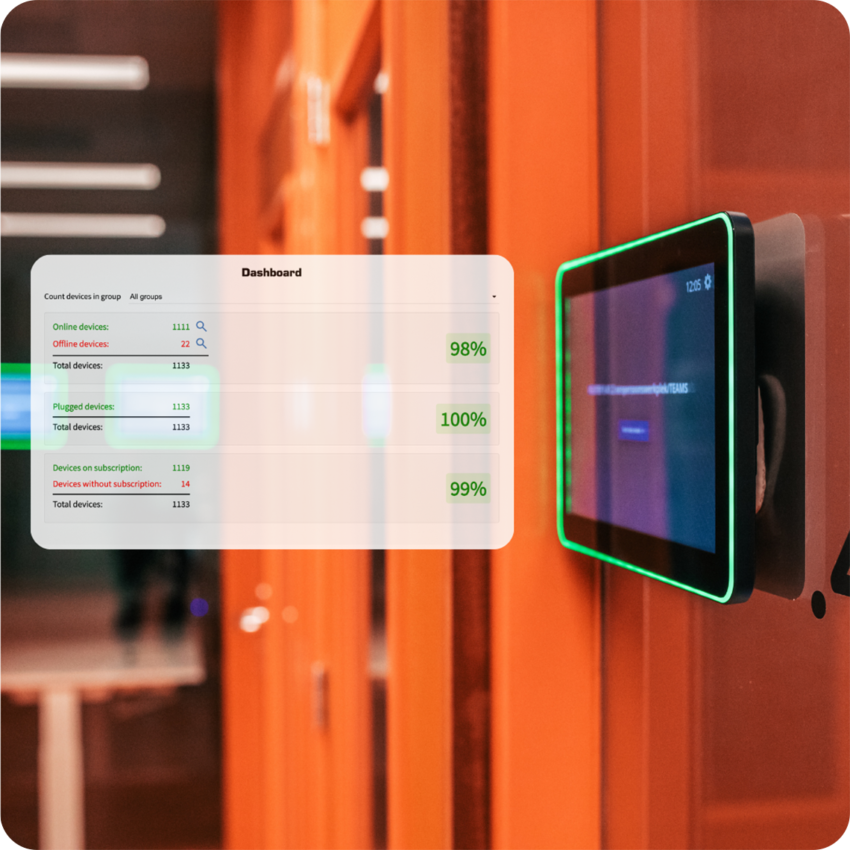
With ProMGR Remote Service, deployed ProDVX devices can be monitored, supported and managed remotely. This helps teams keep control panels operational after installation and reduces the need for unnecessary site visits.

For a single device, this may be useful.
For a fleet of devices, it becomes much more important.

If your control panels are installed across multiple rooms, buildings or locations, remote visibility and management help you keep the setup consistent over time. You are not only choosing the right device for installation day. You are choosing how easy that device will be to support throughout its lifecycle. [See how ProMGR remote device management works →]

Control panel 19

For a single device, this may be useful.
For a fleet of devices, it becomes much more important.

If your control panels are installed across multiple rooms, buildings or locations, remote visibility and management help you keep the setup consistent over time. You are not only choosing the right device for installation day. You are choosing how easy that device will be to support throughout its lifecycle.

Use the infographic to find your best fit

The infographic below compares the main ProDVX options for control panel applications.

It is designed to help you quickly narrow down the right product direction based on your software platform, interaction needs, installation requirements and deployment approach.

Use it as a first filter before diving into the full product details.

Find the right panel for your solution

1
Choose the behaviourWhat must happen during use?
2
Refine the technical fitPlatform, installation and management.
3
Compare the panelsFind the matching rows in the table.

Application context

What will you use the panel for?

Start with the solution or process the panel needs to support.

Building management
HVAC Control
Lighting Control
ProAV control
Industrial automation
Human machine interface
Your use case determines what needs to happen in daily use ↓
Combine your needsOpen the exampleSee how selected behaviours become specifications and a ranked product match.

Start with the customer outcome

Choose every behaviour that matters. One use case can require several behaviours and therefore several specs. The flow below is just one example of how that works in practice.

1Choose what must happenClick the behaviour cards in block A. You can choose more than one.
2Keep your selected needsYour choices stay in “Your selected needs” and highlight the matching specs.
3Follow specs to productsCompare the highlighted rows and product columns, then refine the technical fit in B and C.
Example
Your selected needs
Choose one or more behaviour cards below to build your selection.

First product direction

Choose a behaviour to see your first-fit panels

We’ll keep your choices and use them to rank the matching products.

Your selected behaviour Employees check in with a card and the panel reacts when someone approaches.
Find these specs NFC + motion radar
Best product match APPC 10SFA

Technical validation: after finding the functional match, confirm installation, platform, security and management details. Always involve a technical team member at this stage. Together you can sharpen the shortlist to the right panel for the project.

Behaviour

What should happen when people use the panel?

Choose the behaviours that matter. Your choices become the first product advice; technical details can refine it further.

Next: once your behaviour is clear, use the technical checks below to make the shortlist fit your operating system, installation and management plan.

A

What must the panel run?

Application environment

Use the application’s required OSMatch the panel to the software you already need to run.AndroidWindowsLinuxChromeOSPlatform
B

What should happen during use?

Interaction & response

Make every touch feel immediateFor fast, gesture-led control interfaces.10-point PCAP touch · 10 ms
Let people read status at a glanceUseful when availability must be visible across a room.LED light bar
Recognise people before they continueFor secure access, check-in or personalised workflows.NFC
Let people scan or join by videoFor QR, image capture and video-enabled workflows.Camera
Wake or react as someone approachesFor hands-free triggers and presence-led automation.Motion radar
C

How should installation, security and management work?

Connectivity, protection & support

Fit the panel into the planned setupMatch available power, cabling and wireless connections.PoE+Gigabit EthernetWiFiBluetoothConnectivity
Keep deployed Android panels protectedFor controlled, supported devices throughout their lifecycle.ProSECURE
Maintain every panel from one placeFor remote rollout, updates and support at scale.ProMGRThird-party MDMGoogle AdminRemote device management (MDM)

Specification & panel

Which panel supports your requirements?

Find the matching rows, then choose the product column that covers your needs.

Product APPC
7XPL
5007550
APPC
7XPLN
5007560
APPC
10S
5010710
APPC
10SFA
5010740
IPPC
10SLB
6010370
IPPC
10SLB
6010470
Platform
AndroidAndroid 13Android 12Android 13Android 13
Windows 11 IoTWindows 11 IoT LTSC
Linux (Ubuntu)Ubuntu optional
ChromeOS FlexChromeOS Flex
Screen Click a size to refine the match
Interaction
10-point PCAP touch (10 ms)
LED light bar~
NFC~~~~
Camera~~~~~
Motion radar
Connectivity
PoE+ (IEEE 802.3at)
Gigabit Ethernet
WiFi~~~~
Bluetooth~~~~
Lifecycle
ProSECURE
Remote device management (MDM)ProMGRProMGRProMGRProMGRThird-party MDMGoogle Admin Console
Outcome: your best-fit panel
Product APPC
7XPL
5007550
APPC
7XPLN
5007560
APPC
10S
5010710
APPC
10SFA
5010740
IPPC
10SLB
6010370
IPPC
10SLB
6010470
Legend: Integrated / native ~ Via PoGo / USB adapter / optional

The takeaway

Choosing a control panel is not only a hardware decision. It is a operating system, integration, deployment and management decision as well. Start with what your application needs to run. Then look at how users will interact with the panel, how the device will be installed and how you want to deploy and manage it after rollout.

When those answers are clear, choosing the right hardware becomes much easier. You are no longer comparing products feature by feature. You are choosing the device that fits your situation.

contact

Need help finding the right ProDVX device for your control panel application?

Let us know!

Contact us to discuss your project.